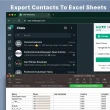





If you run a small business on WhatsApp, labels are one of the fastest ways to stay organized. Whether you run a bakery tagging orders as “Croissants” or a service business tracking “Pending Payment” and “New Leads”, labels keep your day-to-day chat list manageable.
However, WhatsApp Business stops short of giving you an easy export button. If you want to:
- Run targeted follow-up broadcasts or SMS campaigns
- Back up customer data to Google Sheets or your CRM
- Reach out to past buyers when new inventory arrives
…you need a reliable way to pull those contacts into a spreadsheet without manually copy-pasting hundreds of phone numbers.
Step-by-Step: Exporting Contacts from WhatsApp Labels
- Install the Extension: Add the WhatsApp Contacts Exporter Extension to your browser. You can test it out with a free export, or use a license key to export your full list.
- Open WhatsApp Web: Go to web.whatsapp.com and make sure your WhatsApp Business account is linked.
- Open Your Labels Drawer: Click the label icon at the top of your chat list, then select the specific label you want to export.
- Export with One Click: Open the extension popup, choose “Export from Labels”, and select your preference:
- All Contacts: Exports everyone tagged under that label.
- Unsaved Contacts Only: Perfect if you only want to extract new leads whose numbers aren’t yet stored in your phone address book.
- Download your file: Save the list as an Excel file, ready to import into your CRM, email marketing tool, or spreadsheet.